INHALTSVERZEICHNIS
- Importing data into TabTool in Excel format
- Exporting data from TabTool in Excel format
- Updating import and export definitions
To save you the effort of transferring data manually, TabTool provides an Excel-based export function. This allows you to quickly bring existing information into a central, clearly structured environment – and, when required, just as easily make results available again for external systems or analyses.
Importing data into TabTool in Excel format
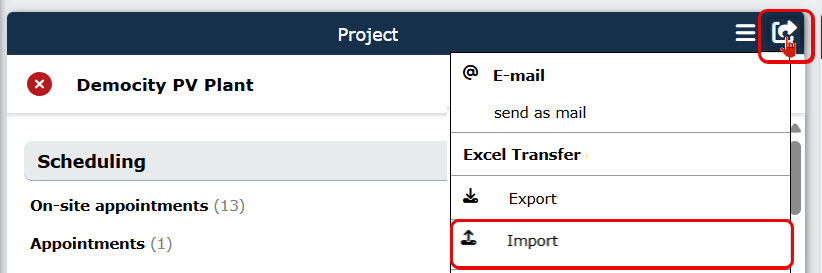
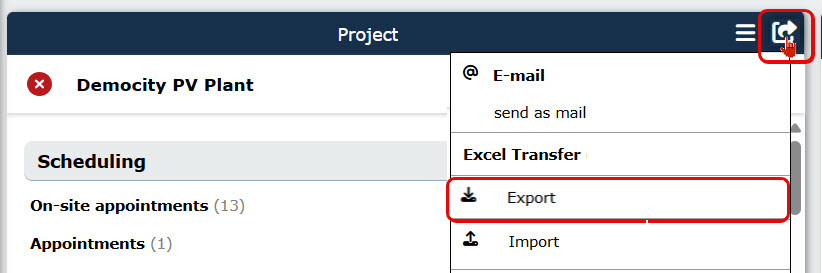
To start a data import into TabTool, click the “Share” icon  in the menu bar of your project file.
In the context menu that opens, select “Import” in the “Excel Transfer” section.
Creating import definitions
Click “Manage import definitions” and then use the button in the right-hand column to open a list of the record types available for import.

In the next step, define which record types you would like to import data for.
As a user of the TabTool PV solutions, for example, various PV components are available to you as record types for import.
 to confirm your selection.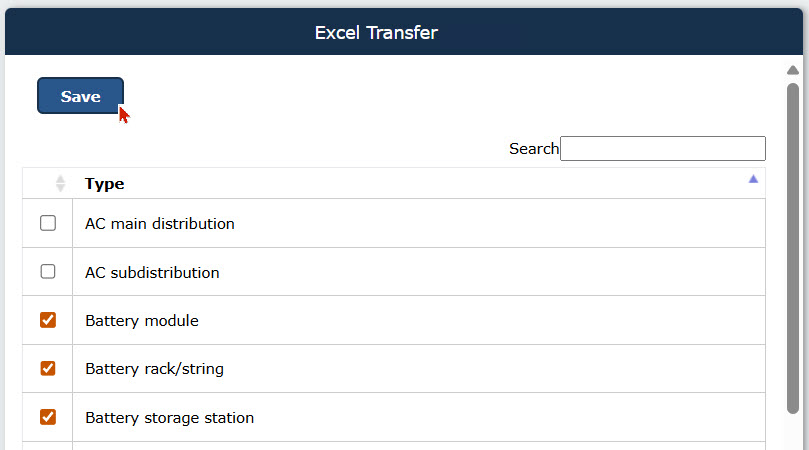
Below the input fields, you will see a tabular overview of the Excel definition.
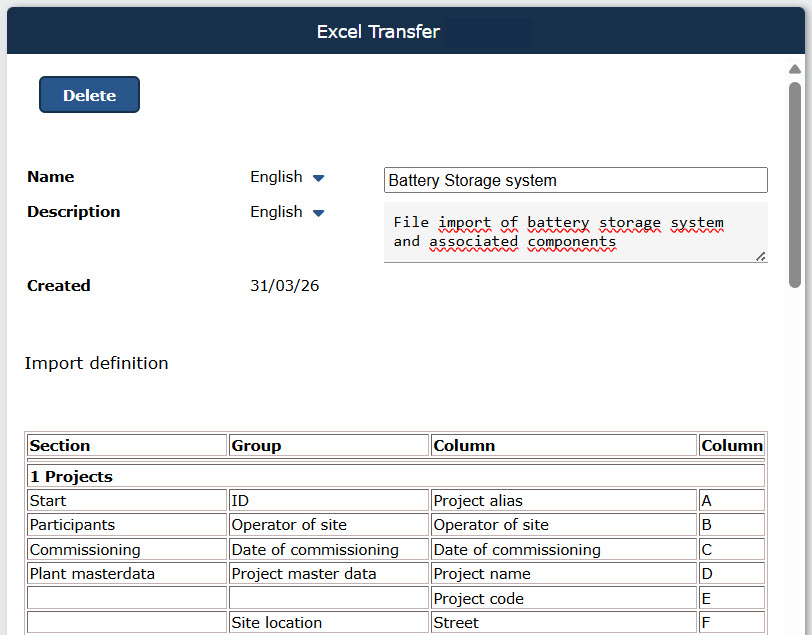
Creating an import file template
Use the arrow button in the record type menu or the breadcrumb navigation to return to the Excel import start page.

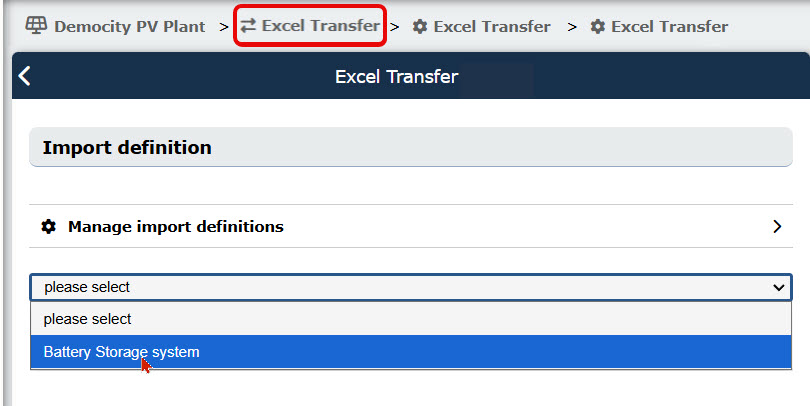
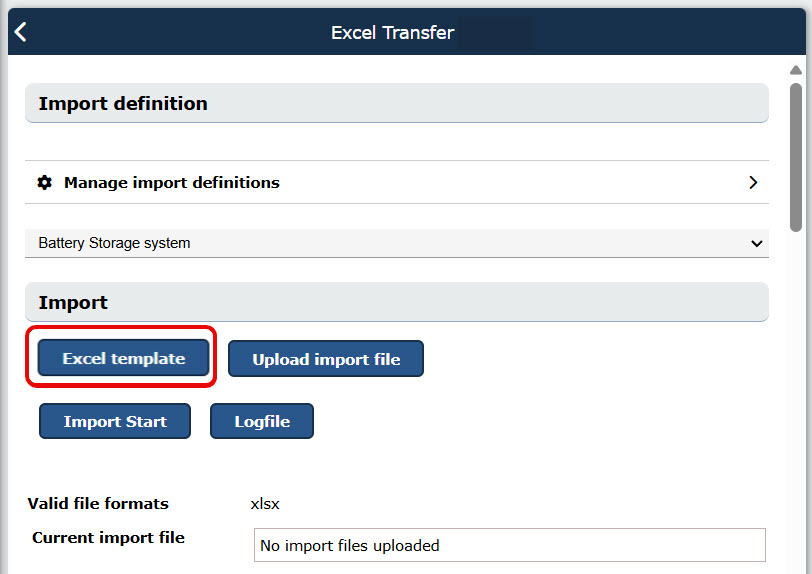
Using the “Excel template” button, you can download an empty file to populate with your import data.
Filling in the Excel template for import
The import file template contains a separate worksheet for each record type.
The worksheets reflect the data structure of the digital forms (“records”) in TabTool:
Each column represents a data field that is displayed in the software at the appropriate position in the form – as an input field, dropdown or as part of a section.
Note on dropdown fields

Some fields in TabTool are dropdowns, meaning that only predefined values can be selected (for example in the fields “Category”, “Inspection area”, “Type” and “Priority”).
The same applies when importing data via Excel: in the corresponding Excel columns, only the exact terms that are available in the dropdown may be entered.
Please do not use your own wording, abbreviations or alternative spellings. This ensures that the system can clearly assign the values and that the import runs smoothly.

Tip: If you are unsure, open the dropdown in TabTool and copy the desired value exactly (ideally via copy & paste) into the corresponding Excel cell.
In column A, the key field (the ID) for each record type is specified. This must be unique for each component.
For example, for inverters, the number (as the ID) must be unique for every entry.
All other columns containing record details can be filled in as required.
In the columns towards the end, the super relations (i.e. the parent records) are specified for each record. A valid ID of the parent record type must be entered here.
For example, a transformer could be created with the ID 01.01. In all subordinate inverters (worksheet "Inverter"), the ID 01.01 can then be entered in the “Super relation transformer” field. The components will then be linked automatically during import.
Uploading the import file and starting the import
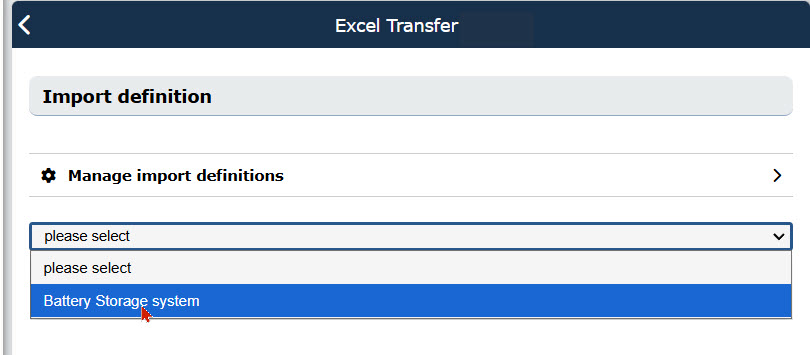
If necessary, reselect the desired import definition using the dropdown menu.
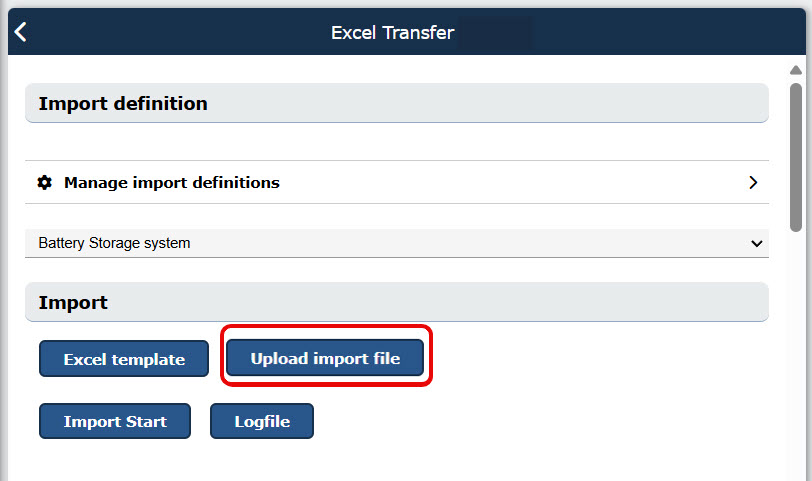
Then click “Upload import file” and select the file you want to import.
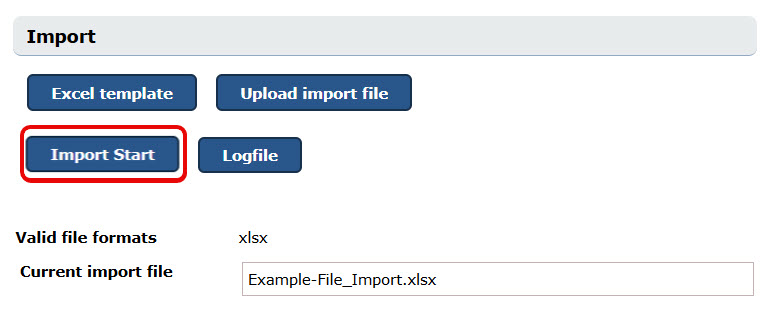
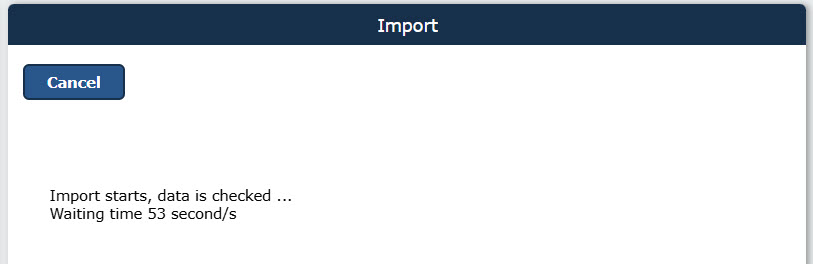
If discrepancies are found, the system displays corresponding messages. You can cancel the import, correct the Excel file and then import it again.
Exporting data from TabTool in Excel format
 in the menu bar of your project file.
In the context menu that opens, select “Export” in the “Excel Transfer” section.
During export, the system checks data consistency to allow a subsequent re-import. For example, missing IDs in records are listed.
Example 1:
At project level, the “Project alias” field must be filled in so that the project data can be re-imported (to ensure that no incorrect data is assigned to the project).
Example 2:
If, for example, individual inverters do not have a number (ID field) assigned, then during import
- the entries are ignored (all entries after the first empty ID), or
- new entries (inverters) are created (if IDs are filled in in Excel but do not yet exist in TabTool).
The export is possible despite error messages, so that the data can always be transferred to external systems.
Updating import and export definitions
Existing import and export definitions remain unchanged even if the record type structure in TabTool changes – for example, because new form fields are added. This ensures continuous data integrity for your existing Excel imports and exports.
If you want to adapt your data imports and exports to an updated structure in TabTool, simply create new import or export definitions. These will automatically adopt the current state of the record type structure in TabTool.
Was this article helpful?
That’s Great!
Thank you for your feedback
Sorry! We couldn't be helpful
Thank you for your feedback
Feedback sent
We appreciate your effort and will try to fix the article